Your phone and keyboard collect dust, fingerprints, crumbs, and oils every day. Because both devices contain delicate electronic parts, cleaning them requires more care than wiping down a table. Too much liquid, the wrong product, or excessive pressure can cause permanent damage.
The good news is that regular cleaning is simple when you use the right tools and follow a few basic steps. This guide explains how to clean your phone, case, laptop keyboard, and external keyboard safely.
What You Need Before You Start
Gather your supplies before cleaning:
– A clean microfiber cloth
– A second dry microfiber cloth
– A soft, clean brush
– Cotton swabs for small areas
– A small amount of 70 percent isopropyl alcohol, if approved by the manufacturer
– A screen-safe cleaning solution, if needed
– Compressed air for keyboards, used carefully
– A dry, well-lit workspace
Avoid using rough paper towels, tissues that leave lint, household glass cleaner, bleach, ammonia, aerosol sprays, or abrasive cleaners. These products can damage screens, protective coatings, plastic surfaces, and printed letters on keys.
Always check the cleaning instructions from your device manufacturer. Some phones and keyboards have special finishes that require specific products.
How to Clean Your Phone Safely
1. Turn Off and Disconnect the Phone
Power off your phone before cleaning. Remove the charging cable, headphones, and any other accessories. Cleaning around an active charging port or connector can increase the risk of damage.
If your phone has a removable case, take it off. Cleaning the case separately helps you reach the edges and corners of the phone.
2. Remove Loose Dust
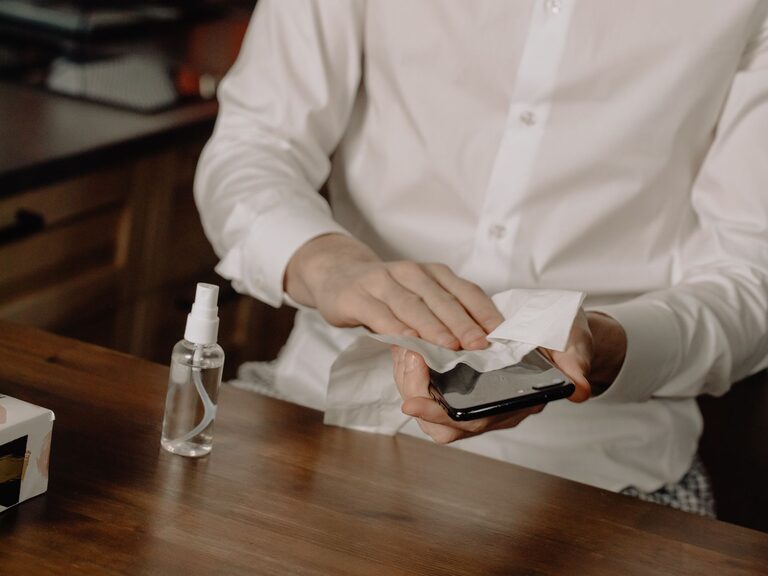
Use a dry microfiber cloth to gently remove dust, fingerprints, and light surface dirt. Move the cloth in small, gentle motions rather than pressing hard.
For seams, speaker openings, and the area around buttons, use a soft, dry brush. Keep the brush clean and avoid pushing dust deeper into openings.
Do not use sharp objects such as pins, needles, or paper clips. They can scratch the phone, damage protective screens, or push debris into the device.
3. Clean the Screen
If a dry cloth does not remove smudges, slightly dampen one corner of the microfiber cloth with water or a screen-safe cleaner. The cloth should be damp, not wet.
Never spray liquid directly onto the phone. Spray, if necessary, onto the cloth instead. Keep moisture away from:
– Charging ports
– Speakers and microphones
– Buttons and switches
– SIM card trays
– Seams and openings
Gently wipe the screen and back of the phone. Use the dry side of the cloth to remove any remaining moisture.
Many phones have an oil-resistant screen coating. Harsh cleaners and repeated use of strong chemicals may wear down this coating, making the screen feel less smooth and more likely to show fingerprints.
4. Clean the Camera Lenses
Camera lenses should be cleaned with a dry microfiber cloth. If a mark remains, lightly dampen a small section of the cloth and wipe gently.
Avoid pressing directly on the lens. Do not use rough fabric or abrasive materials, which can create fine scratches that affect photo quality.
5. Clean the Phone Case
The best method depends on the case material. For many plastic or silicone cases, use a soft cloth dampened with mild soap and water. Wipe the case, then dry it completely before putting it back on the phone.
Leather or fabric cases may need special care. Follow the case maker’s instructions and avoid soaking these materials.
Make sure both the phone and case are fully dry. Trapped moisture can collect around the edges and ports.
How to Clean a Laptop Keyboard
Laptop keyboards are attached to the computer, so they need extra care.
1. Shut Down the Laptop
Turn off the laptop completely and unplug the power cable. Disconnect accessories such as a mouse, USB drive, or external keyboard.
If the laptop has a removable battery, remove it only if the manufacturer’s instructions allow it. Do not clean while the computer is running.
2. Remove Crumbs and Dust
Open the laptop slightly and hold it at a safe angle. Use a soft brush to loosen debris between the keys.
You can also use compressed air in short bursts. Keep the can upright and use the air at an angle rather than pointing directly under the keys. This helps move debris out instead of forcing it farther inside.
Do not shake the can while using it, and do not hold the nozzle too close to the keyboard. Liquid propellant can escape if compressed air is used incorrectly.
3. Wipe the Keys
Dampen a microfiber cloth very lightly with water or a manufacturer-approved cleaner. Wipe the tops and sides of the keys without allowing liquid to drip between them.
For narrow gaps, use a cotton swab that is only slightly damp. Avoid pressing hard, pulling on keys, or trying to remove laptop keycaps unless the manufacturer specifically says it is safe.
Finish with a dry cloth and leave the laptop open until all surfaces are completely dry.
How to Clean an External Keyboard
An external keyboard is usually easier to clean because you can disconnect it and move it away from the computer.
Basic Cleaning Steps
- Unplug the keyboard or turn it off if it is wireless.
- Remove loose debris with a soft brush or carefully used compressed air.
- Wipe the key surfaces with a barely damp microfiber cloth.
- Clean the outer frame and cable with the same method.
- Let the keyboard dry fully before reconnecting it.
Some mechanical keyboards have removable keycaps. If you choose to remove them, take a photo first so you can replace each key correctly. Use a keycap puller rather than a sharp tool, and clean the keycaps separately according to the keyboard maker’s instructions.
Do not soak the keyboard. Even when the keycaps are removable, the main keyboard body contains electronic components that should stay dry.
Using Disinfecting Products
If you need to disinfect a surface, use a product specifically approved for the device. Some manufacturers allow certain disinfecting wipes or a small amount of 70 percent isopropyl alcohol on a cloth.
Never pour or spray disinfectant onto a phone or keyboard. Do not mix cleaning products, and avoid bleach-based solutions unless the manufacturer clearly recommends them.
After using a disinfecting wipe, follow the product instructions and allow the surface to dry naturally. Excess rubbing can damage printed symbols, coatings, or soft-touch finishes.
Common Cleaning Mistakes to Avoid
Keep these precautions in mind:
– Do not clean a device while it is powered on or charging.
– Do not spray liquid directly onto electronics.
– Do not pour cleaner into ports, speakers, or gaps.
– Do not use abrasive sponges or rough cloths.
– Do not use sharp tools to remove dirt.
– Do not force keys off a laptop keyboard.
– Do not reconnect a device until it is completely dry.
– Do not use household cleaners without checking compatibility first.
How Often Should You Clean?
A light wipe once or twice a week can help prevent buildup. Clean more often if you eat near your keyboard, share devices, travel frequently, or notice visible grime.
A quick daily wipe with a dry microfiber cloth is usually enough for fingerprints. Deeper cleaning can be done when dust collects around keys, the phone case looks dirty, or surfaces feel sticky.
Regular, gentle cleaning is safer than occasional aggressive scrubbing. By using minimal moisture, suitable materials, and light pressure, you can keep your phone and keyboard clean while protecting the parts that make them work.
About the Author